eAnalyze User Guide
Match video analysis for coaches, analysts and sports academies · macOS 12 or later · Apple silicon and Intel
Getting started
- Click Videos and add your match video with Find & Add Video.
- Click ⊕ Season to create a season (for example 2026-2027).
- Click ⊕ Team and add both teams to the season.
- Click ⊕ Match, choose the home and visitor teams.
- Click Actions and create the clip names you want to tag (Counter Attack, Pressing, Set Piece…) with a hot key for each.
- Open the match in the tree and choose Highlight Reel Editor to start tagging.
Main window
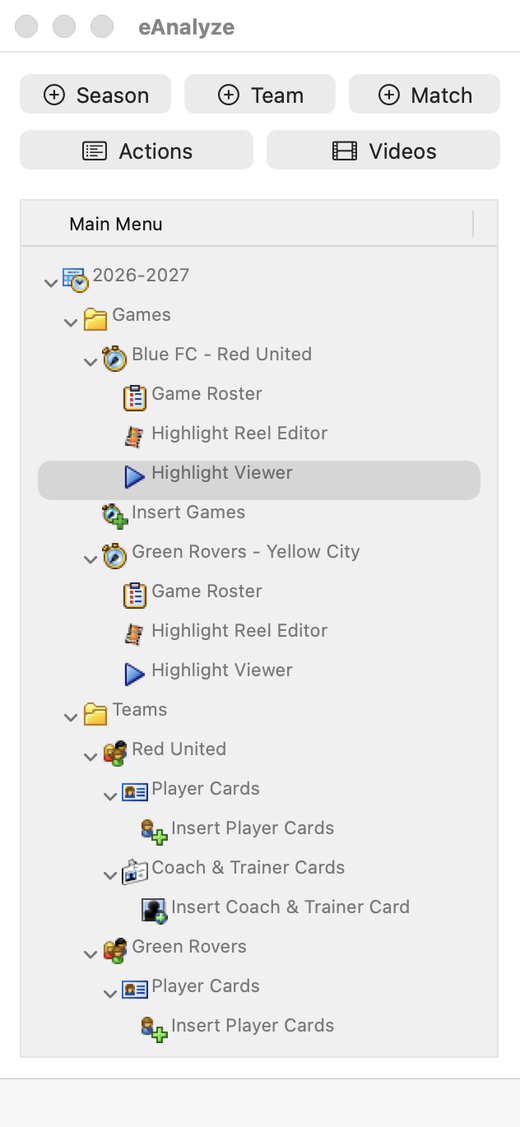
The buttons at the top create a new Season, Team or Match, and open the Actions (clip names) and Videos (video library) windows. The tree shows each season with two groups:
- Games – every match, each with Game Roster, Highlight Reel Editor and Highlight Viewer.
- Teams – every team, each with Player Cards and Coach & Trainer Cards.
Click an item in the tree to open it.
Video Library
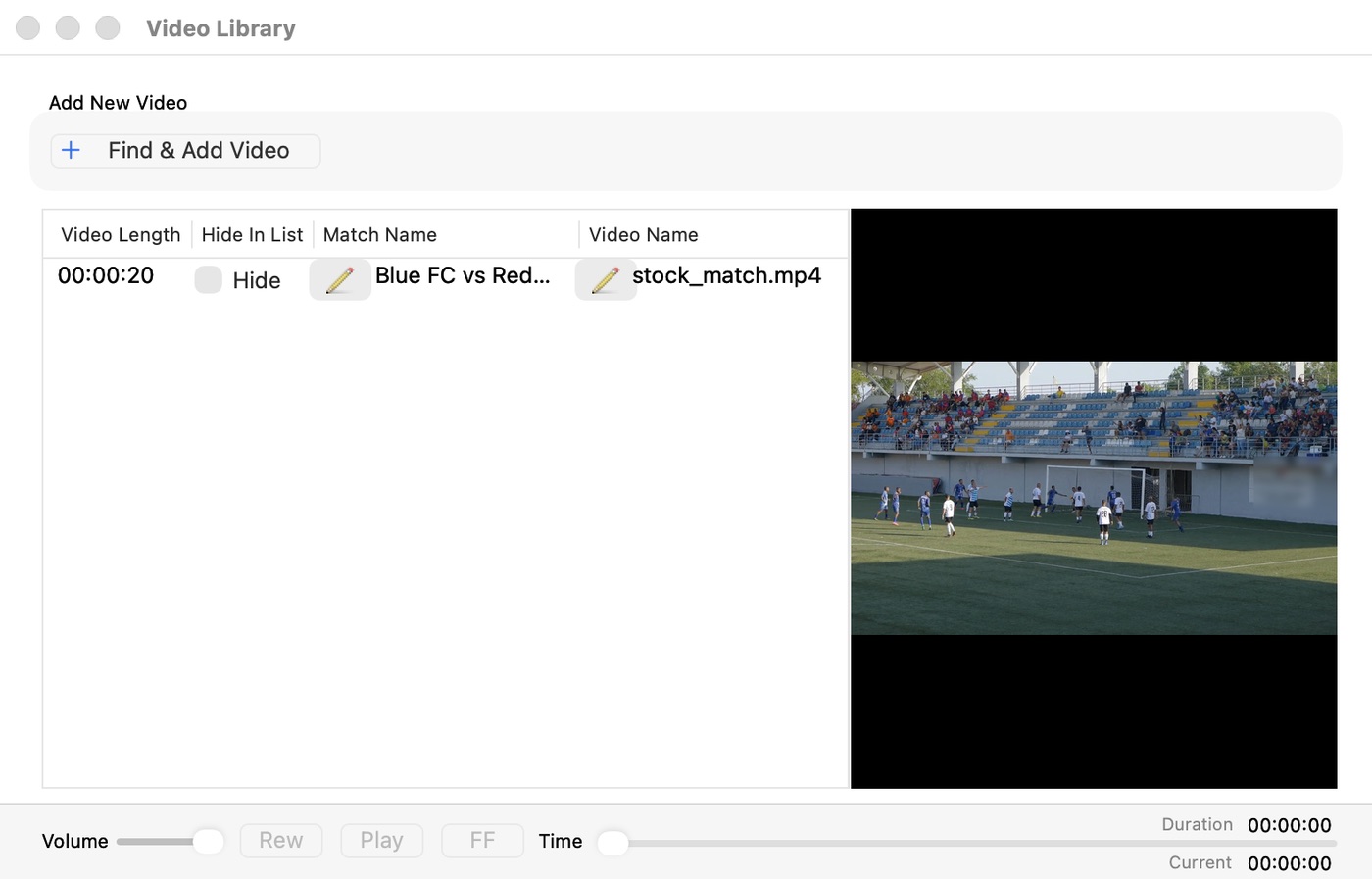
- Find & Add Video adds one or more video files. eAnalyze keeps a reference to the file; your video is not copied or uploaded.
- Supported formats: MP4, MOV, M4V, MPG, MTS. AVI, MKV and WMV cannot be played on macOS — convert them to MP4 first.
- Give each video a clear Match Name so you can find it in the editor.
- Hide In List hides old videos from the selection lists without removing them.
- If you move or rename a file, select it and choose the new file with the change option. Your clips stay linked.
Clip names (Actions)
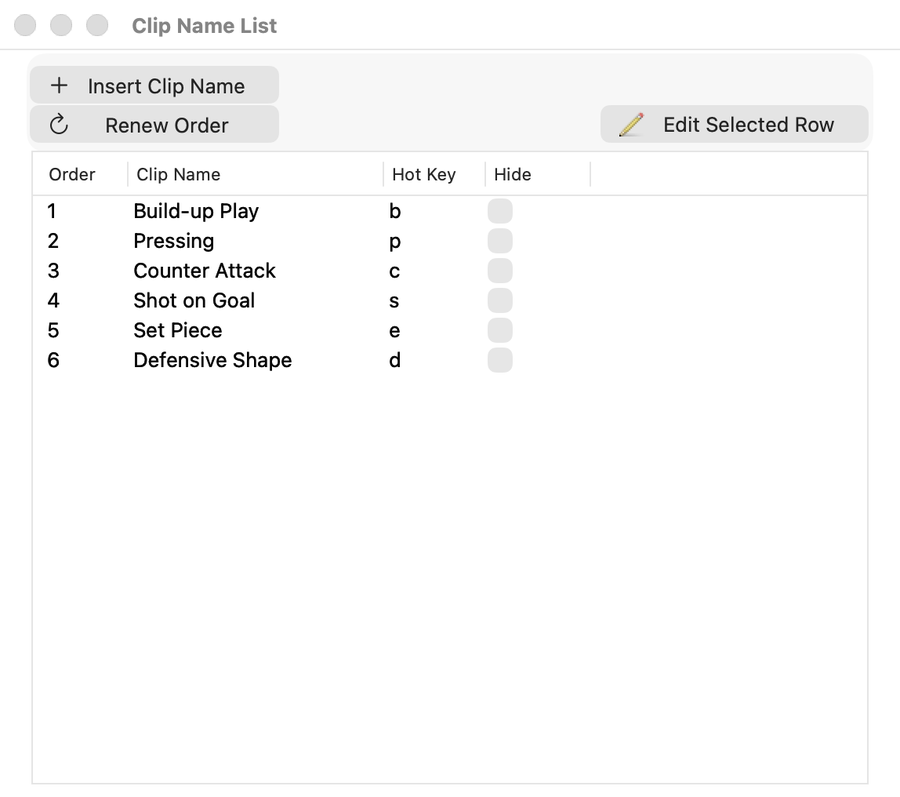
- Insert Clip Name adds a new action, for example Counter Attack, with an Order and a single-letter Hot Key.
- Edit Selected Row changes an existing action. Renew Order renumbers the list.
- Hide removes an action from the Highlight Reel Editor list without deleting it (useful for actions of another sport).
- The order you set here is used by Reorder from Clip Names List in the Highlight Viewer.
Teams, players & coaches
- Add teams with ⊕ Team; each team appears under Teams in its season.
- Under a team, Insert Player Cards adds players (name, shirt number, position and more) and Insert Coach & Trainer Card adds staff.
- Click a player or coach to view or edit the card.
Matches & roster
- ⊕ Match creates a match between two teams of the season. The match appears under Games.
- Game Roster selects which players of each team took part. Rostered players can be linked to clips and used as a filter.
Highlight Reel Editor
Create a clip
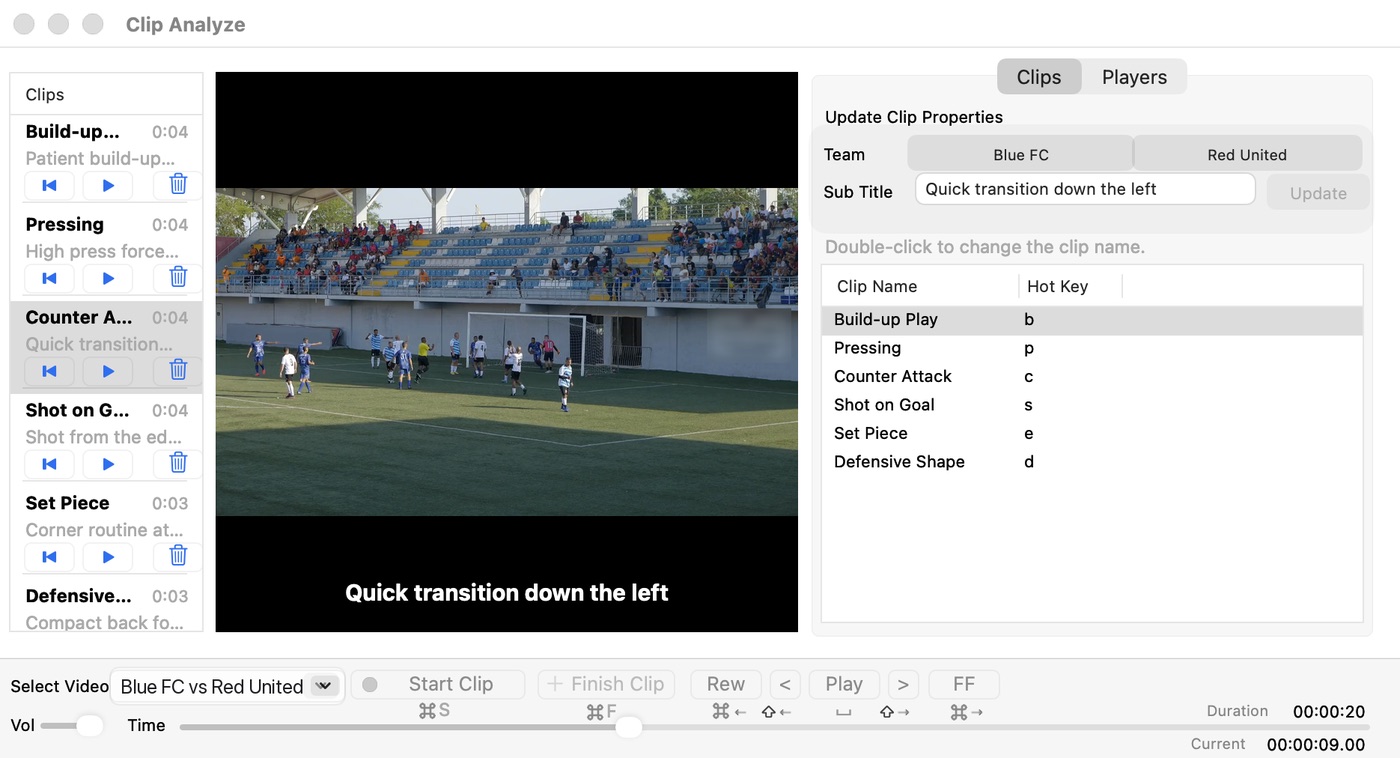
- Choose the match video in Select Video at the bottom.
- Play the video. When a play begins, press ⌘S (Start Clip).
- When it ends, press ⌘F (Finish Clip). The clip is added to the list on the left with the selected clip name and team.
Use ← → to step one frame at a time and ⇧← ⇧→ to jump one second, so the start and end are exactly where you want them.
Label a clip
- Clip name: select the clip and press the action’s hot key (for example c for Counter Attack), or double-click a clip name in the list on the right.
- Team: click the home or visitor team button (⌘1 / ⌘2).
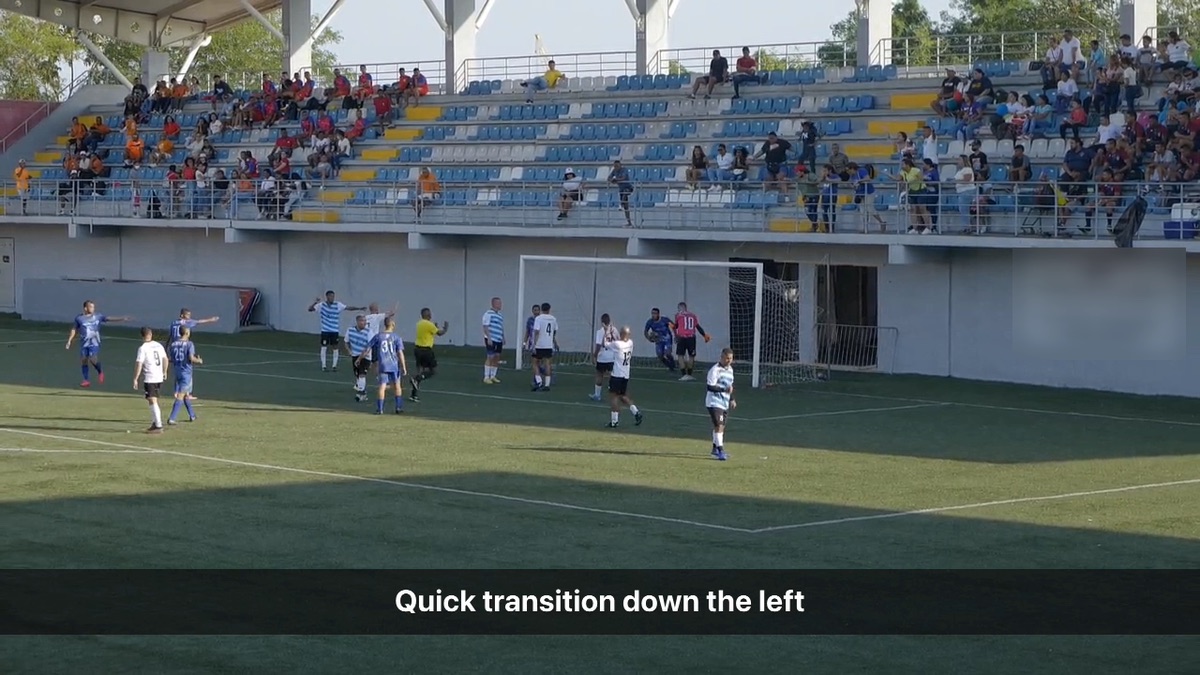
- Sub Title: type a short note and press Return or Update. It is shown on the video and can be written onto exported videos. Clear the text and update to remove it.
- Players: in the Players tab, double-click players to add them to or remove them from the clip.
The clip list
Each clip shows its name, length and subtitle, with three buttons: ⏮ go to the start of the clip, ▶ play just this clip, and 🗑 delete the clip.
Import live tags from iPhone or iPad
Tag a match live with eAnalyze on iPhone or iPad, then use Send to Mac in the Live tab (AirDrop, Mail or Files). On the Mac, open the match in the Highlight Reel Editor, select the match video, play it to the kick-off whistle and choose File › Import Live Tags from iPhone… (⇧⌘I). Each tag becomes a clip using its action’s seconds before and after. For second-half tags, play the video to the second-half kick-off and import again. If the kick-off was already marked on the iPhone, it is used automatically. Importing the same file twice does not create duplicate clips.
Highlight Viewer
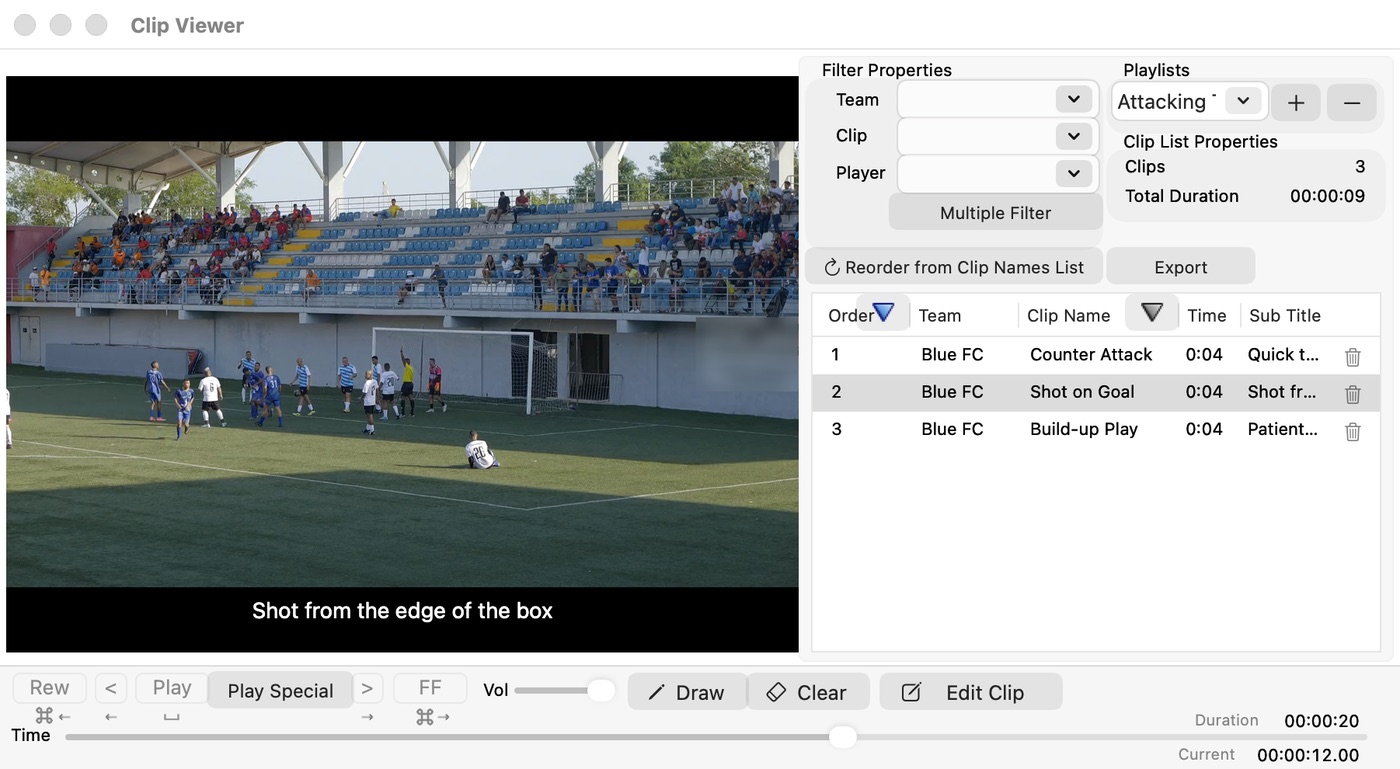
- Filter Properties: show only one Team, one Clip name or one Player. Multiple Filter lets you combine several teams and clip names.
- Play plays the clips one after another. Play Special plays the video continuously without stopping at clip ends.
- Sort by Order or Clip Name with the arrow buttons in the column headers. Reorder from Clip Names List sorts clips in the order defined in Actions.
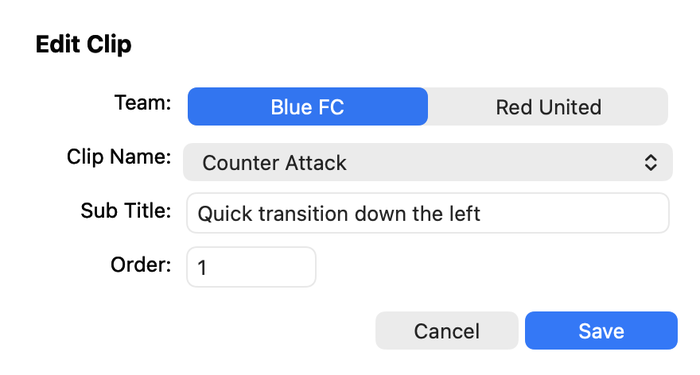
- Edit Clip (or double-click a row) changes the team, clip name, subtitle and order in one window.
- Draw lets you draw lines on the video to explain a situation; Clear removes the drawings.
- The small trash icon in a row removes the clip from this list only. The clip itself is not deleted.
Playlists
Playlists are named selections of clips, for example one per player, unit or opponent.
- Create: select the clips (hold ⌘ or ⇧ to select several) and click + next to Playlists. With no multiple selection, all clips currently shown (including your filters) are used.
- Add to an existing playlist: right-click the selected clips and choose Add to Playlist.
- Open: choose the playlist in the Playlists menu; choose Original to see all clips of the match again.
- Order: in a playlist, Order is the position in the list; change it with Edit Clip.
- Remove a clip from a playlist with the trash icon or the right-click menu. − deletes the playlist itself.
Exporting videos
- In the Highlight Viewer, show the clips you want (a playlist or a filter).
- Click Export, choose a name and location.
- Choose the Quality and whether to write clip notes on the video, then save.
| Quality | When to use |
|---|---|
| Original | Fastest, no quality loss — clips are joined without re-encoding. Cannot add subtitles; if clips come from videos of different sizes, eAnalyze automatically uses High instead. |
| High | Source resolution, re-encoded. Supports subtitles and mixed videos. |
| 1080p / 720p | Smaller files for sharing with players. |
| 480p | Smallest files for messaging apps. |
Clips are joined in the order shown in the list. Portrait phone videos are fitted automatically. When the export finishes, click Show in Finder.
Tactics Board
Click Tactics Board in the main window (or choose Window › Tactics Board, ⇧⌘B) to design drills and set pieces. Boards are listed on the left; click + to add one and type its name at the top.
- Pitch: full pitch, half pitch, penalty area or plain grass.
- Players: twelve poses in five team colours, plus goalkeepers. Equipment: balls, cones, markers, rings, hurdles, poles, ladders and mini goals.
- Marks: a ring under a player or a shaded zone. Text: numbered badges and captions.
- Draw: drag on the pitch to draw a pass (solid arrow), run (dashed arrow), dribble (wavy arrow) or plain line.
Click an item to select it, drag to move it and pinch or rotate on the trackpad to resize or turn it. The bar under the pitch duplicates (⌘D), flips, rotates, resizes (⌘− / ⌘+), recolours and deletes the selected item. Double-click a caption to edit it. Copy Image puts a 2400 × 1600 picture on the clipboard and Export Image… saves it as PNG. Without a subscription you can keep three boards; eAnalyze Pro removes the limit. The same board is also available in eAnalyze for iPhone and iPad.
Keyboard shortcuts
| Keys | Action | Where |
|---|---|---|
| ⌘S | Start Clip | Highlight Reel Editor |
| ⌘F | Finish Clip | Highlight Reel Editor |
| ⌘1 / ⌘2 | Set the selected clip’s team to home / visitor | Highlight Reel Editor |
| ⇧⌘I | Import live tags from iPhone or iPad | Highlight Reel Editor |
| ⇧⌘B | Open the Tactics Board | Anywhere |
| ⌘Z / ⌘D / ⌘E | Undo / duplicate the selected item / export the board as PNG | Tactics Board |
| Letter keys | Assign the clip name with that hot key to the selected clip | Highlight Reel Editor |
| Space | Play / Pause | Editor and Viewer |
| ← / → | One frame back / forward | Editor and Viewer |
| ⇧← / ⇧→ | One second back / forward | Editor and Viewer |
| ⌘← / ⌘→ | Rewind / Fast forward | Editor and Viewer |
| ↑ / ↓ | Previous / next clip | Highlight Viewer |
| Return | Save the subtitle | Highlight Reel Editor |
Subscription (eAnalyze Pro)
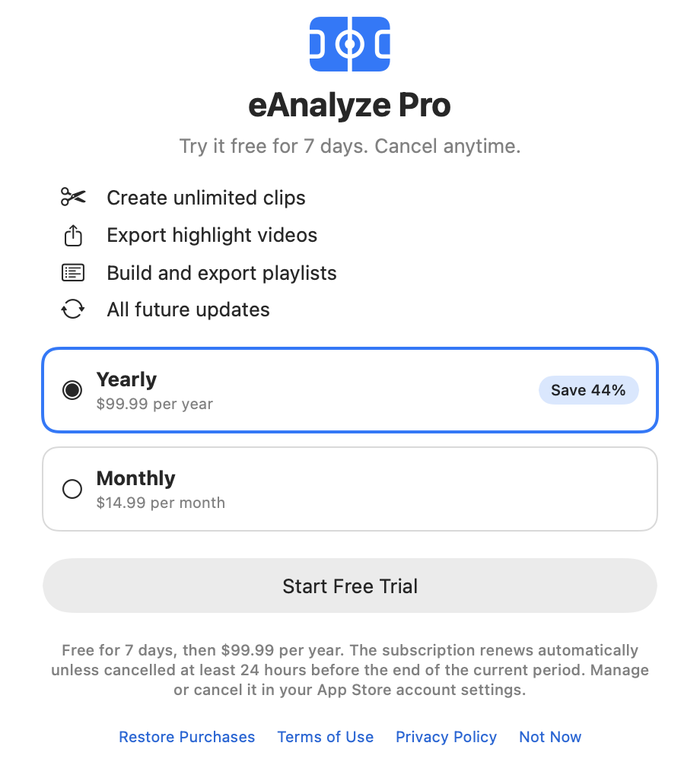
- Opening and viewing your seasons, matches, clips and playlists is always free.
- eAnalyze Pro is needed to create clips, export videos and build playlists. It is available monthly or yearly, with a 7-day free trial (once per Apple Account).
- You are not charged during the trial. Cancel at least 24 hours before it ends if you don’t want to continue.
- eAnalyze › Restore Purchases restores a subscription on a new Mac. eAnalyze › Manage Subscription… opens your App Store subscriptions.
Your data & backups
- Everything stays on your Mac: no account, no uploads, no tracking. See the Privacy Policy.
- eAnalyze stores its database in its own app container and keeps a daily backup for the last 10 days.
- Your video files are not copied — keep them in a safe place and back them up with Time Machine.
Troubleshooting
A video does not open
The file may have been moved, renamed or be on a disconnected drive. Reconnect the drive or choose the file again in the Video Library. AVI/MKV/WMV files must be converted to MP4.
Pro features are locked after subscribing
Choose eAnalyze › Restore Purchases and check that you are signed in to the App Store with the same Apple Account.
An export fails
Check that the videos of the clips are available and that there is enough free disk space. If Original quality fails, eAnalyze retries automatically with High.
Still need help?
Write to info@espor.com.tr with your macOS version and a short description. See also the support page.
eAnalyze Kullanım Kılavuzu
Antrenörler, analistler ve spor akademileri için maç video analizi · macOS 12 ve üzeri · Apple silikon ve Intel
Başlarken
- Videos düğmesine tıklayın ve maç videonuzu Find & Add Video ile ekleyin.
- ⊕ Season ile bir sezon oluşturun (örneğin 2026-2027).
- ⊕ Team ile iki takımı da sezona ekleyin.
- ⊕ Match ile ev sahibi ve misafir takımı seçerek maçı oluşturun.
- Actions düğmesiyle etiketlemek istediğiniz klip adlarını (Hızlı hücum, Pres, Duran top…) her biri için bir kısayol harfiyle oluşturun.
- Ağaçta maçı açın ve etiketlemeye başlamak için Highlight Reel Editor’ı seçin.
Ana pencere
Üstteki düğmeler yeni Season (sezon), Team (takım) veya Match (maç) oluşturur; Actions (klip adları) ve Videos (video kütüphanesi) pencerelerini açar. Ağaçta her sezonun iki grubu vardır:
- Games – tüm maçlar; her maçın altında Game Roster (kadro), Highlight Reel Editor (klip kesme) ve Highlight Viewer (klip izleme).
- Teams – tüm takımlar; her takımın altında Player Cards (oyuncu kartları) ve Coach & Trainer Cards (antrenör kartları).
Açmak için ağaçtaki öğeye tıklayın.
Video kütüphanesi
- Find & Add Video bir veya birden çok video ekler. eAnalyze dosyaya yalnızca bağlantı tutar; videonuz kopyalanmaz veya yüklenmez.
- Desteklenen biçimler: MP4, MOV, M4V, MPG, MTS. AVI, MKV ve WMV macOS’ta oynatılamaz; önce MP4’e dönüştürün.
- Klip ekranında kolay bulmak için her videoya anlaşılır bir Match Name verin.
- Hide In List eski videoları silmeden seçim listelerinden gizler.
- Bir dosyanın yerini veya adını değiştirirseniz, videoyu seçip değiştirme seçeneğiyle yeni dosyayı gösterin. Klipleriniz bağlı kalır.
Klip adları (Actions)
- Insert Clip Name yeni bir hareket ekler (örneğin Counter Attack); Order (sıra) ve tek harflik Hot Key (kısayol) verilir.
- Edit Selected Row mevcut hareketi düzenler. Renew Order listeyi yeniden numaralar.
- Hide işaretli hareket silinmeden Highlight Reel Editor listesinden gizlenir (başka bir branşın hareketleri için kullanışlı).
- Buradaki sıra, Highlight Viewer’daki Reorder from Clip Names List ile kullanılır.
Takımlar, oyuncular ve antrenörler
- ⊕ Team ile takım ekleyin; takım sezonun Teams grubunda görünür.
- Takımın altındaki Insert Player Cards oyuncu (ad, forma numarası, mevki ve diğerleri), Insert Coach & Trainer Card antrenör ekler.
- Kartı görmek veya düzenlemek için oyuncuya ya da antrenöre tıklayın.
Maçlar ve kadro
- ⊕ Match sezonun iki takımı arasında maç oluşturur. Maç Games grubunda görünür.
- Game Roster her takımdan maçta oynayan oyuncuları seçer. Kadrodaki oyuncular kliplere bağlanabilir ve filtre olarak kullanılabilir.
Highlight Reel Editor (klip kesme)
Klip oluşturma
- Alttaki Select Video listesinden maç videosunu seçin.
- Videoyu oynatın. Pozisyon başlarken ⌘S (Start Clip) tuşlarına basın.
- Bittiğinde ⌘F (Finish Clip) tuşlarına basın. Klip, seçili klip adı ve takımla soldaki listeye eklenir.
Başlangıç ve bitişi tam istediğiniz yere getirmek için ← → ile kare kare, ⇧← ⇧→ ile birer saniye ilerleyin.
Klibi etiketleme
- Klip adı: klibi seçip hareketin kısayol harfine basın (örneğin Counter Attack için c) ya da sağdaki listede klip adına çift tıklayın.
- Takım: ev sahibi veya misafir takım düğmesine tıklayın (⌘1 / ⌘2).
- Sub Title (altyazı): kısa bir not yazıp Return’e veya Update’e basın. Not videonun üzerinde görünür ve dışa aktarılan videoya yazılabilir. Silmek için metni boşaltıp güncelleyin.
- Oyuncular: Players sekmesinde oyunculara çift tıklayarak kliğe ekleyin veya çıkarın.
Klip listesi
Her klip adı, süresi ve altyazısıyla görünür; üç düğmesi vardır: ⏮ klibin başına git, ▶ yalnız bu klibi oynat, 🗑 klibi sil.
iPhone veya iPad'den canlı etiketleri aktarma
Maçı iPhone veya iPad'deki eAnalyze ile canlı etiketleyin, Canlı sekmesinde Send to Mac ile gönderin (AirDrop, Mail veya Dosyalar). Mac'te maçı Highlight Reel Editor'da açın, maç videosunu seçin, videoyu başlama düdüğüne getirin ve File › Import Live Tags from iPhone… (⇧⌘I) seçin. Her etiket, hareketin önce/sonra saniyeleriyle bir klibe dönüşür. İkinci yarı etiketleri için videoyu ikinci yarı düdüğüne getirip tekrar aktarın. Başlama düdüğü iPhone'da işaretlendiyse otomatik kullanılır. Aynı dosyayı ikinci kez aktarmak çift klip oluşturmaz.
Highlight Viewer (klip izleme)
- Filter Properties: yalnız bir Team (takım), bir Clip (klip adı) veya bir Player (oyuncu) gösterin. Multiple Filter birden çok takım ve klip adını birlikte seçmenizi sağlar.
- Play klipleri art arda oynatır. Play Special klip sonlarında durmadan videoyu kesintisiz oynatır.
- Sütun başlıklarındaki ok düğmeleriyle Order (sıra) veya Clip Name’e göre sıralayın. Reorder from Clip Names List klipleri Actions’taki sıraya göre dizer.
- Edit Clip (veya satıra çift tıklama) takım, klip adı, altyazı ve sırayı tek pencerede değiştirir.
- Draw bir durumu anlatmak için video üzerine çizgi çizmenizi sağlar; Clear çizimleri siler.
- Satırdaki küçük çöp simgesi klibi yalnızca bu listeden çıkarır. Klibin kendisi silinmez.
Oynatma listeleri (Playlists)
Oynatma listeleri, kliplerden oluşan adlandırılmış seçkilerdir; örneğin her oyuncu, bölge veya rakip için bir liste.
- Oluşturma: klipleri seçin (birden çok seçim için ⌘ veya ⇧) ve Playlists yanındaki +’ya tıklayın. Çoklu seçim yoksa o an görünen tüm klipler (filtreleriniz dahil) kullanılır.
- Var olan listeye ekleme: seçili kliplere sağ tıklayıp Add to Playlist’i seçin.
- Açma: Playlists menüsünden listeyi seçin; maçın tüm kliplerine dönmek için Original’ı seçin.
- Sıra: listede Order klibin listedeki yeridir; Edit Clip ile değiştirin.
- Çöp simgesi veya sağ tık menüsüyle klibi listeden çıkarın. − listenin kendisini siler.
Video dışa aktarma
- Highlight Viewer’da istediğiniz klipleri gösterin (bir oynatma listesi veya filtre).
- Export’a tıklayın, dosya adını ve konumunu seçin.
- Quality (kalite) ve klip notlarını videoya yazma seçeneğini belirleyip kaydedin.
| Kalite | Ne zaman |
|---|---|
| Original | En hızlı, kalite kaybı yok — klipler yeniden kodlanmadan birleştirilir. Altyazı eklenemez; klipler farklı boyuttaki videolardan geliyorsa eAnalyze otomatik olarak High kullanır. |
| High | Kaynak çözünürlükte yeniden kodlama. Altyazıyı ve karışık videoları destekler. |
| 1080p / 720p | Oyuncularla paylaşmak için daha küçük dosyalar. |
| 480p | Mesajlaşma uygulamaları için en küçük dosyalar. |
Klipler listedeki sırayla birleştirilir. Dikey telefon videoları otomatik yerleştirilir. Dışa aktarma bitince Show in Finder ile dosyayı açabilirsiniz.
Taktik tahtası
Antrenman ve duran top organizasyonu çizmek için ana penceredeki Tactics Board düğmesine tıklayın (ya da Window › Tactics Board, ⇧⌘B). Tahtalar solda listelenir; + ile yeni tahta açın, adını üstte yazın.
- Pitch: tam saha, yarı saha, ceza sahası ya da düz çim.
- Players: beş forma renginde on iki duruş ve kaleciler. Equipment: top, huni, tabak işaret, halka, bariyer, direk, merdiven ve mini kale.
- Marks: oyuncu altı halka ya da taralı bölge. Text: numara rozetleri ve yazılar.
- Draw: sahada sürükleyerek pas (düz ok), koşu (kesikli ok), top sürme (dalgalı ok) ya da düz çizgi çizin.
Parçayı seçmek için tıklayın, taşımak için sürükleyin; izleme dörtgeninde iki parmakla büyütüp döndürün. Sahanın altındaki çubukla seçili parçayı kopyalayın (⌘D), yansıtın, döndürün, boyutlandırın (⌘− / ⌘+), rengini değiştirin ve silin. Yazıyı düzenlemek için çift tıklayın. Copy Image 2400 × 1600 görseli panoya kopyalar, Export Image… PNG olarak kaydeder. Abonelik olmadan üç tahta saklanır; eAnalyze Pro ile sınır yoktur. Aynı tahta iPhone ve iPad'deki eAnalyze'da da var.
Klavye kısayolları
| Tuşlar | İşlem | Ekran |
|---|---|---|
| ⌘S | Klibi başlat (Start Clip) | Highlight Reel Editor |
| ⌘F | Klibi bitir (Finish Clip) | Highlight Reel Editor |
| ⌘1 / ⌘2 | Seçili klibin takımını ev sahibi / misafir yap | Highlight Reel Editor |
| ⇧⌘I | iPhone veya iPad'den canlı etiketleri aktar | Highlight Reel Editor |
| ⇧⌘B | Taktik tahtasını aç | Her yerde |
| ⌘Z / ⌘D / ⌘E | Geri al / seçili parçayı kopyala / tahtayı PNG olarak dışa aktar | Taktik tahtası |
| Harf tuşları | O kısayola sahip klip adını seçili klibe ata | Highlight Reel Editor |
| Boşluk | Oynat / Duraklat | Editor ve Viewer |
| ← / → | Bir kare geri / ileri | Editor ve Viewer |
| ⇧← / ⇧→ | Bir saniye geri / ileri | Editor ve Viewer |
| ⌘← / ⌘→ | Geri sar / İleri sar | Editor ve Viewer |
| ↑ / ↓ | Önceki / sonraki klip | Highlight Viewer |
| Return | Altyazıyı kaydet | Highlight Reel Editor |
Abonelik (eAnalyze Pro)
- Sezon, maç, klip ve oynatma listelerinizi açıp görüntülemek her zaman ücretsizdir.
- Klip oluşturma, video dışa aktarma ve oynatma listesi oluşturma için eAnalyze Pro gerekir. Aylık veya yıllık alınabilir; 7 gün ücretsiz deneme vardır (her Apple Hesabı için bir kez).
- Deneme süresince ücret alınmaz. Devam etmek istemiyorsanız bitiminden en az 24 saat önce iptal edin.
- eAnalyze › Restore Purchases aboneliği yeni bir Mac’te geri yükler. eAnalyze › Manage Subscription… App Store aboneliklerinizi açar.
Verileriniz ve yedekler
- Her şey Mac’inizde kalır: hesap yok, yükleme yok, takip yok. Ayrıntılar için Gizlilik Politikası.
- eAnalyze veritabanını kendi uygulama alanında tutar ve son 10 günün günlük yedeğini saklar.
- Video dosyalarınız kopyalanmaz — onları güvenli bir yerde tutun ve Time Machine ile yedekleyin.
Sorun giderme
Bir video açılmıyor
Dosya taşınmış, adı değişmiş veya bağlı olmayan bir diskte olabilir. Diski bağlayın ya da Video kütüphanesinde dosyayı yeniden seçin. AVI/MKV/WMV dosyaları MP4’e dönüştürülmelidir.
Abone oldum ama Pro özellikler kilitli
eAnalyze › Restore Purchases’ı seçin ve App Store’da aynı Apple Hesabıyla oturum açtığınızı kontrol edin.
Dışa aktarma başarısız oluyor
Kliplerin videolarının erişilebilir olduğunu ve yeterli boş disk alanı bulunduğunu kontrol edin. Original kalite başarısız olursa eAnalyze otomatik olarak High ile yeniden dener.
Hâlâ yardım mı gerekiyor?
macOS sürümünüzü ve kısa bir açıklamayı ekleyerek info@espor.com.tr adresine yazın. Destek sayfasına da bakabilirsiniz.